Upstreams#
Introduction#
Because LiveShield is designed to operate on the network edge, it will receive traffic which is coming from various upstream providers.
Distinguishing between upstreams might be necessary for various reasons:
You might want to use selective blackholing feature to only blackhole traffic from specific upstreams if it exceeds its threshold.
You might want to analyse traffic coming only from specific upstreams. This is also useful if you cannot easily select which traffic is mirrored to the LiveShield Worker and want to be sure that only traffic from selected upstreams are analysed and internal traffic is not counted.
The main way for LiveShield to distinguish between upstreams is to use the 802.1Q VLAN tag number.
Warning
If you are mirroring traffic which is coming from multiple upstreams, but without preserving the VLAN tag, you cannot use this feature.
If you’re not planning to use this feature, you can skip this chapter.
Adding#
In order to add a new upstream, navigate to Upstreams section in the main menu.
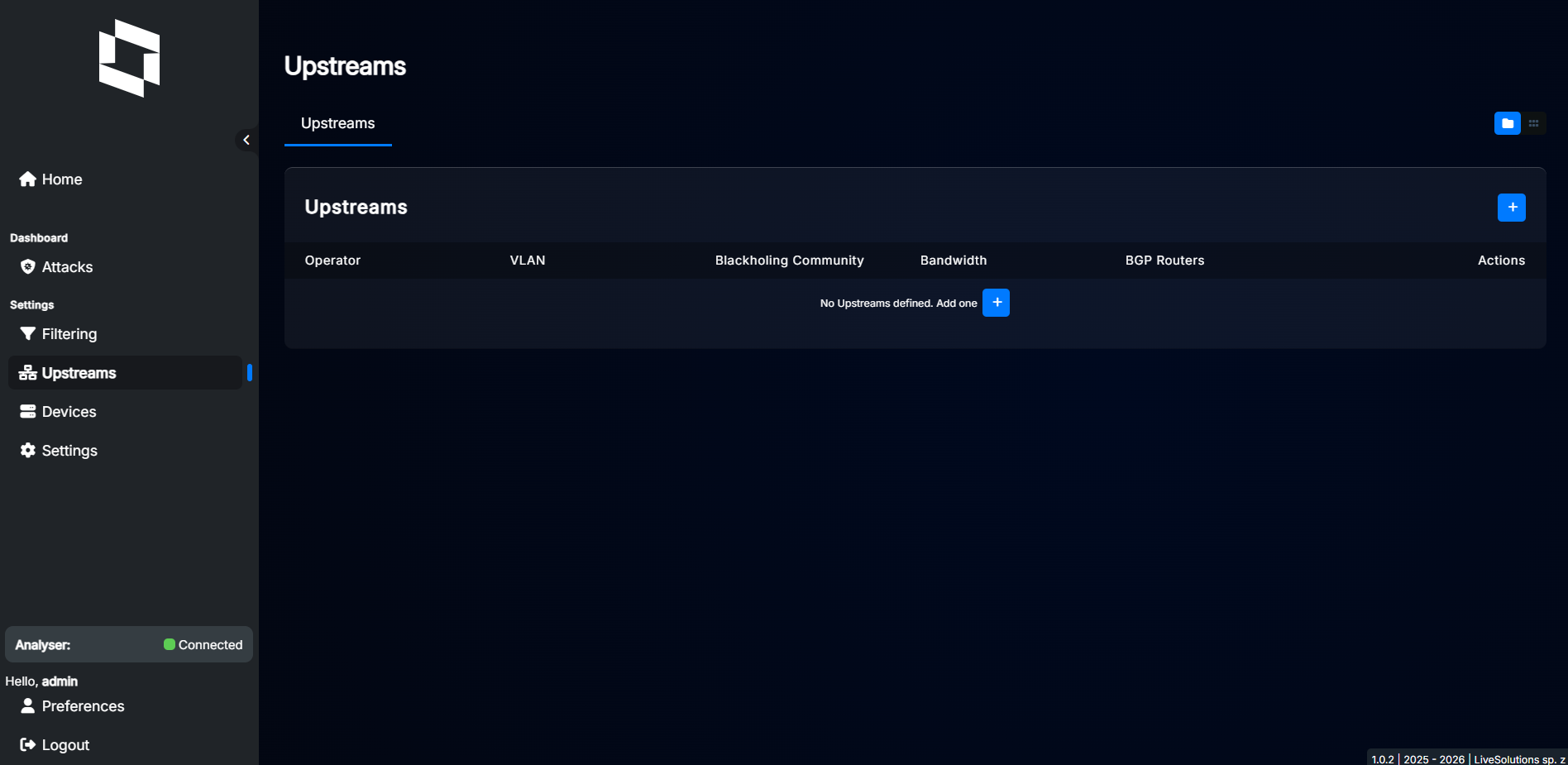
Then click “+” button to add new upstream. A dialog will appear where you can set upstream parameters.
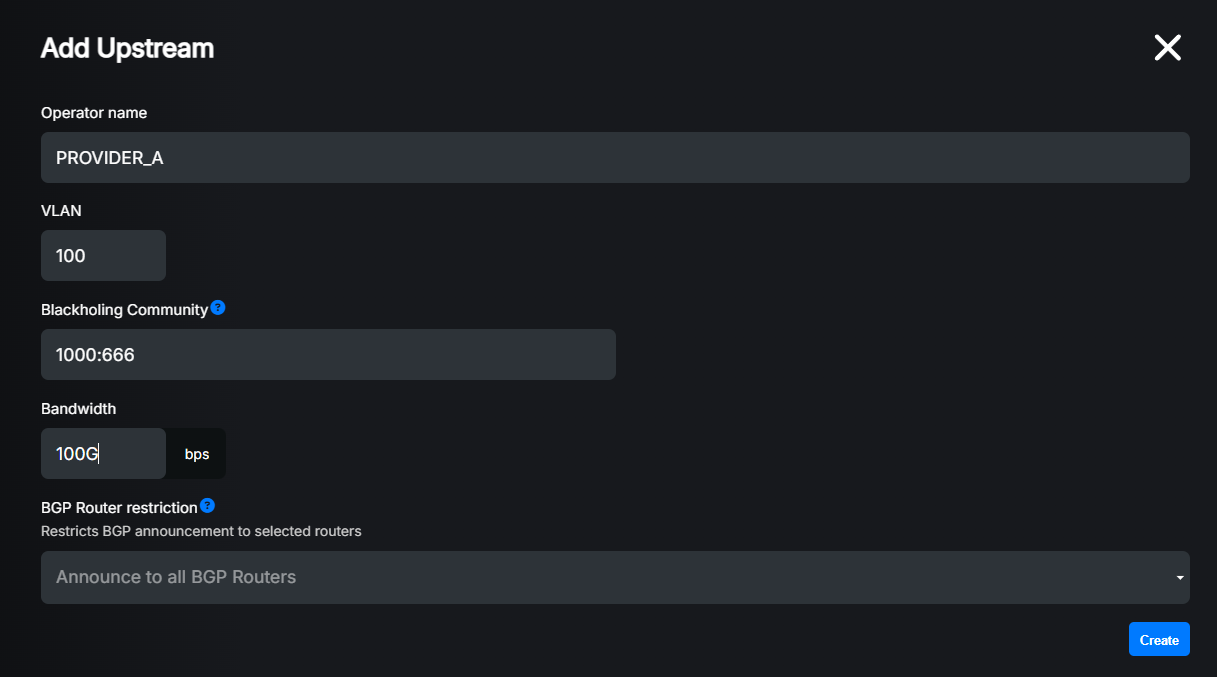
Settings explained:
Name: A friendly name for your upstream. Just for your reference. If you leave it blank, system will generate random name for you.
VLAN: The 802.1Q VLAN tag number which is used to distinguish this upstream. Must be unique for each upstream. 0 means untagged traffic.
Blackholing Community: (Optional) The BGP community value which will be used when blackholing traffic on this upstream. Community must be in the format number:number (e.g., 65000:100). If you leave it blank, no special community will be used (except global BH community set here). For more information about blackholing communities, please refer to selective blackholing.
Bandwidth: (Optional) The maximum bandwidth for this upstream. This is currently used only for informational purposes. You can put here value with unit suffix (e.g., 10k, 10M, 10G).
BGP Router Restriction: (Optional) You can restrict blackholing routes triggered by this upstream to be advertised only to specific BGP peers. Select one or more BGP routers from the list. If you leave it blank, blackholing routes will be advertised to all BGP peers. This only works if selective blackholing feature is configured. For more information go to selective blackholing.
Example of filled data:
Once you’re done, click “Save” button. The new upstream will be added to the list.

Using upstreams#
You can now use created upstreams in various parts of LiveShield, for example in selective blackholing configuration or in Base configuration.
As mentioned earlier, you can filter traffic coming to the NIC port based on upstream. This is possible by navigating to Devices then NIC Ports and editing desired NIC port.
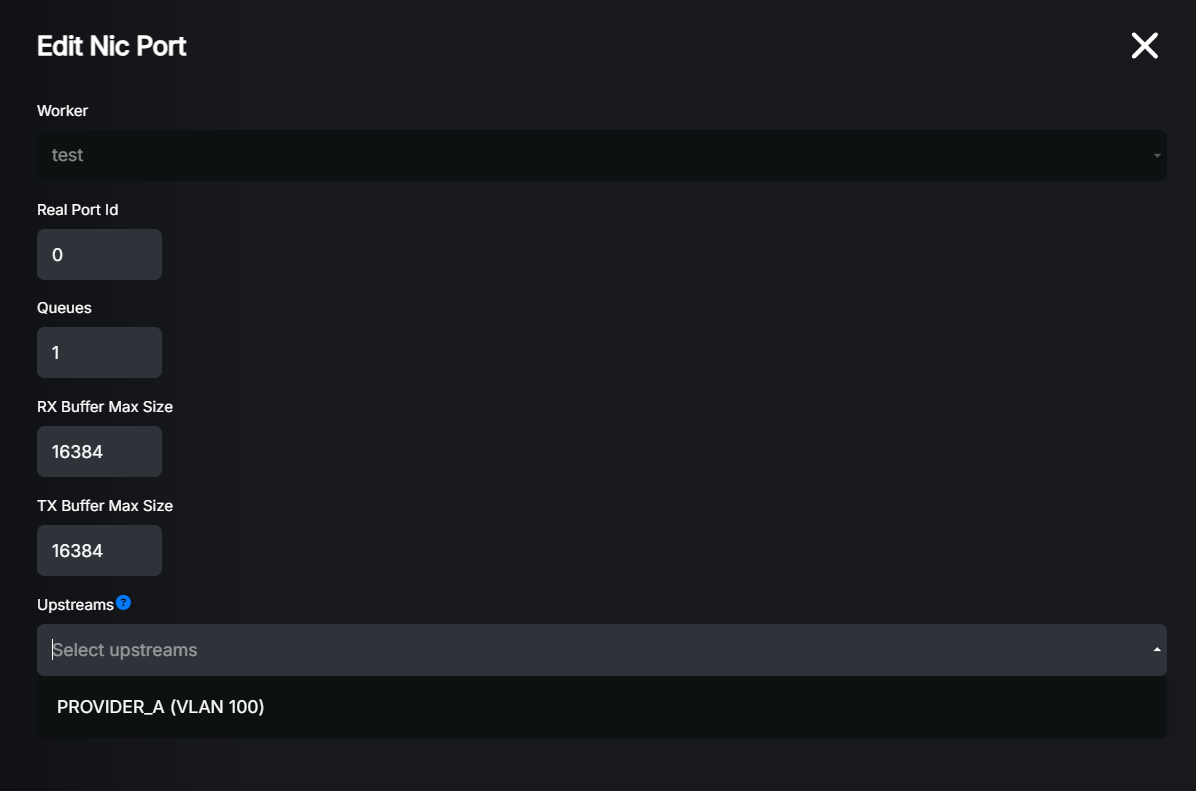
For more details about NIC port configuration, go to: Base configuration.
Note
After selecting an upstream for a NIC port, only traffic coming from the VLAN attached to that upstream will be analysed.