Advanced filtering#
Although most attacks can be filtered using predefined rules, there may be cases where there’s a need for real-time adjustments. In such cases, LiveShield provides advanced filtering that allows dynamic pattern recognition based on packet data.
Profile#
An advanced filtering profile is a set of rules that define how LiveShield should learn traffic and generate filtering rules.
In order to create a new profile, navigate to Filtering, then to Advanced filtering section.
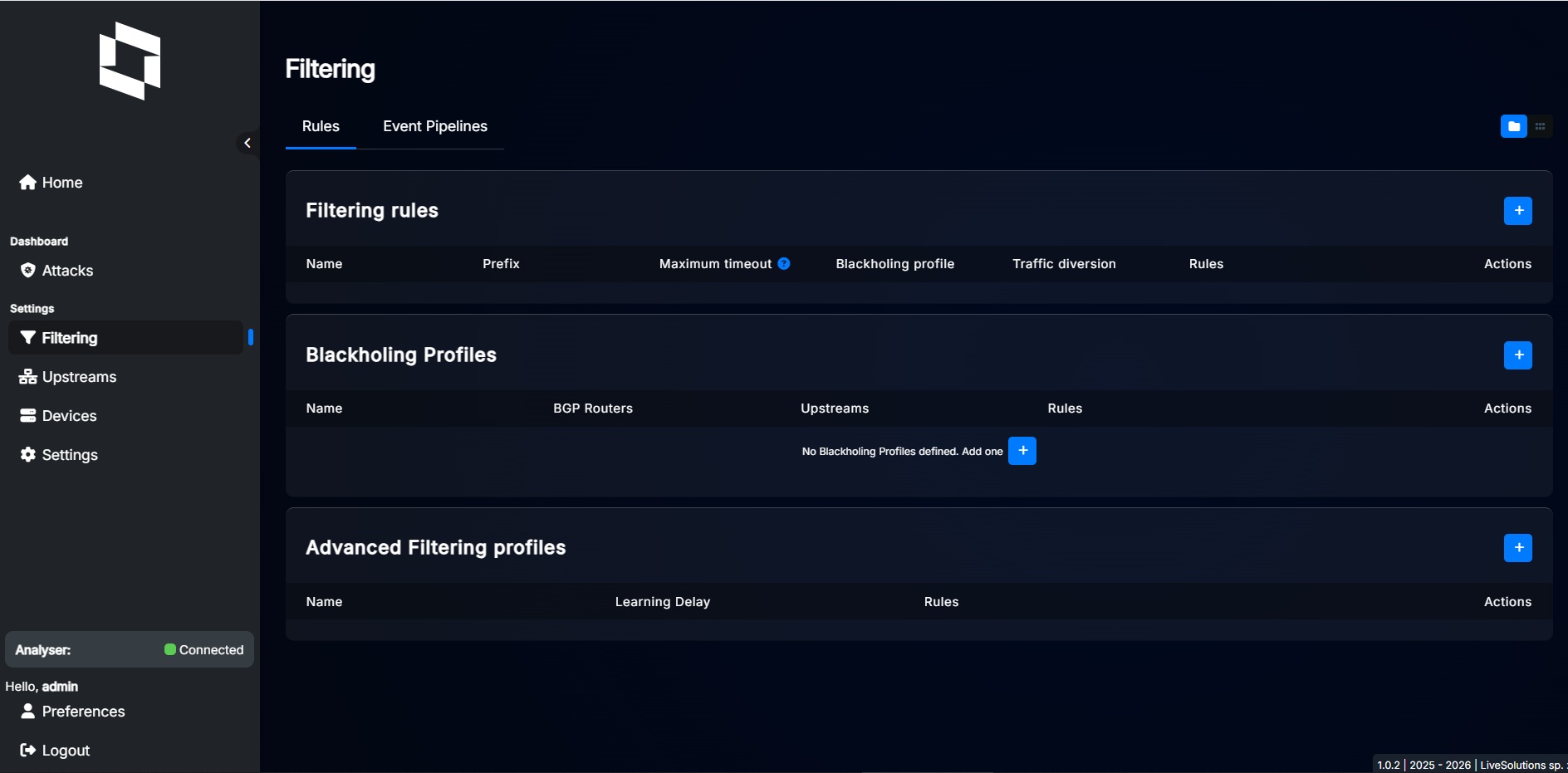
In order to add a new profile, click the “+” button.
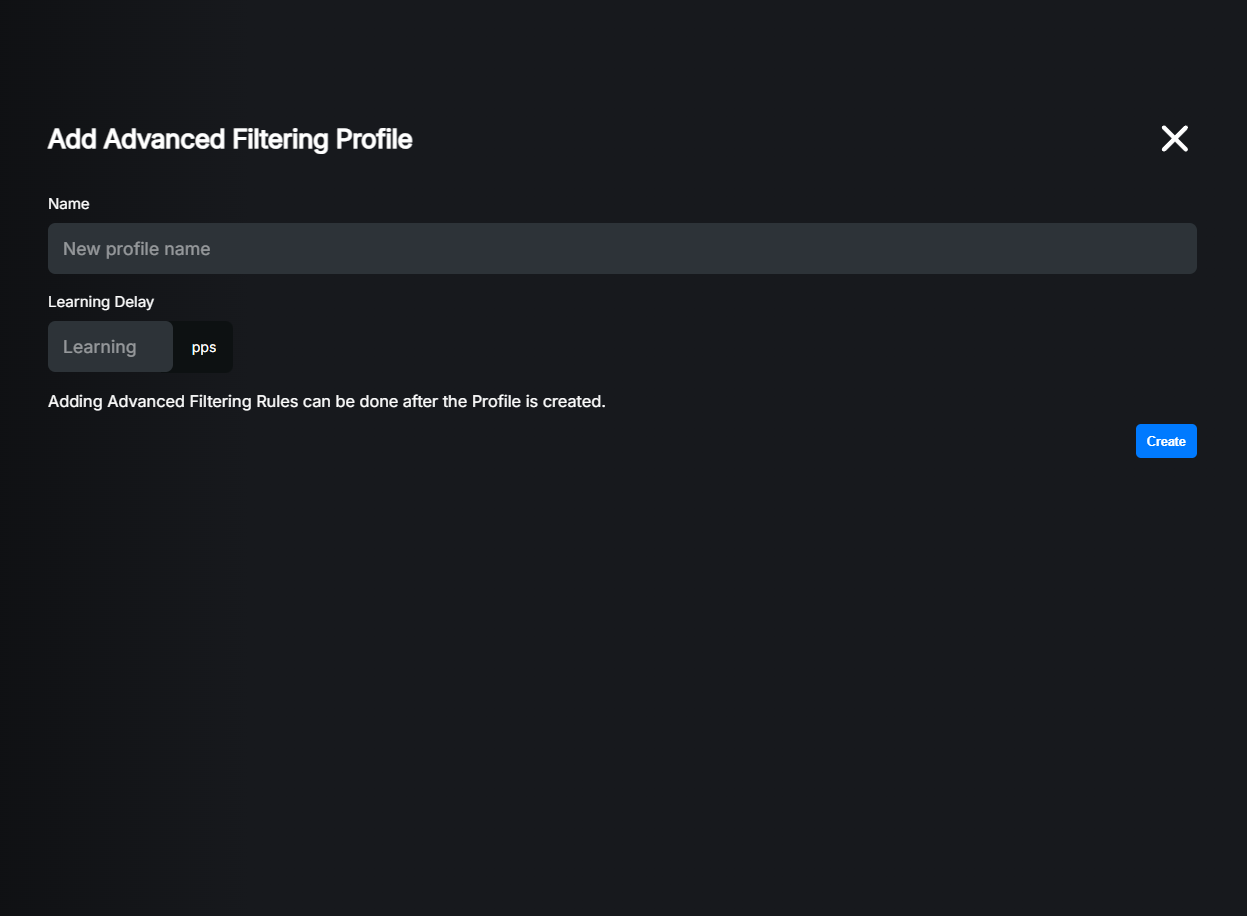
Settings explained:
Name: Name of the profile. This is just friendly name for easier identification. You can leave it blank and system will generate random name for you.
Learning Delay: This is the packet count that is needed before any rules are generated. The higher the value, the more accurate the rules will be, but it will also take longer to generate them. This setting is strongly dependent on Packet probing speed setting. If analyser is probing with 128pps speed and you set 500 packets learning delay, first rule will be generated after a minimum of ~4 seconds.
For purposes of this example, we will create a profile with a learning delay set to 200 packets which will start generating rules after ~2 seconds of probing traffic.

In order to configure rules for this profile, click on the pencil icon to edit it.
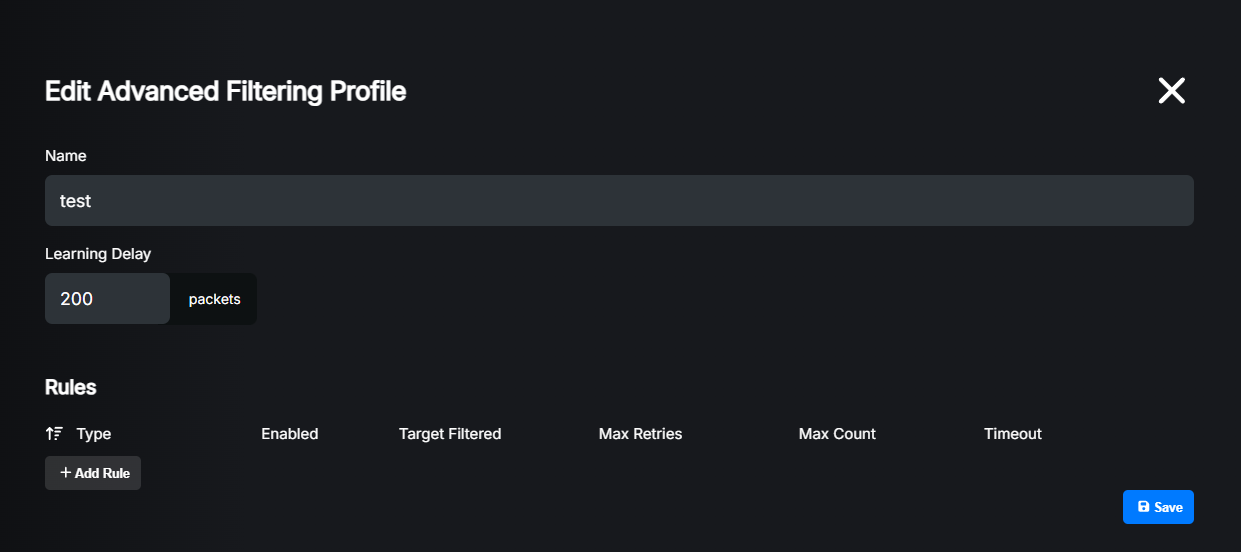
Click “Add rule” to create a new rule. Here you can see the added rules:
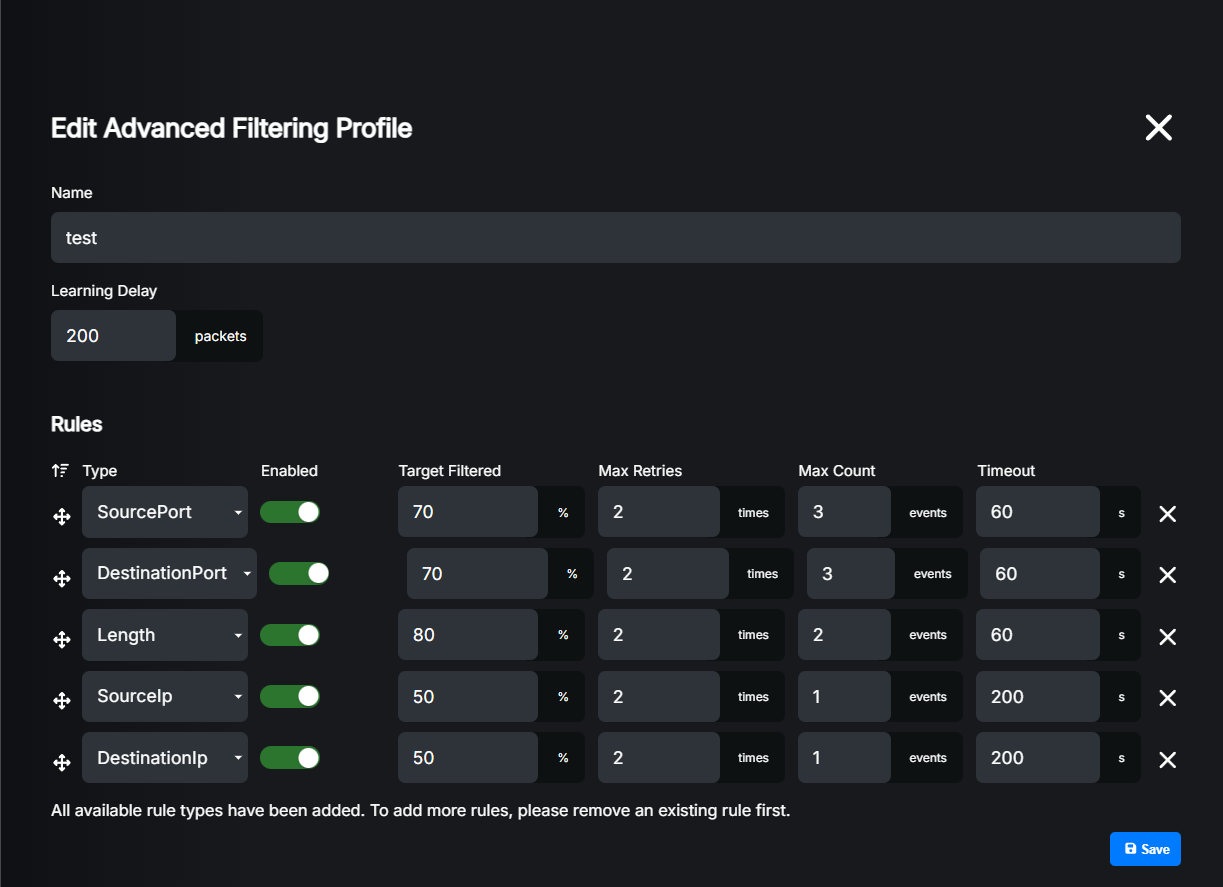
Settings explained:
Type: This is the traffic characteristic that will be used for pattern recognition. Allowed values are: SourcePort, DestinationPort, Length, SourceIP, DestinationIP.
Enabled: Enable or disable this rule without deleting it.
Target Filtered: Percentage of the traffic that should be filtered by this rule to stop skipping to the next rule.
Max Retries: Maximum number of times that LiveShield will try to learn pattern for this rule before skipping to the next one.
Max Count: Maximum number of filtering rules that can be generated by this rule.
Timeout: Time in seconds after which filtering rule will be removed when there is no longer matching traffic.
Learning logic#
So in our example, the system will wait until 200 packets are probed (~2s with 128pps packet probing speed), then it will start with the first rule. Because first rule is set to SourcePort, LiveShield will try to find source port from which most of the attack traffic is coming. If it fails to do so, it will try 2 times because Max Reties is set to 2. If it still fails, it will skip to the next rule. Otherwise if it finds “best” source port, it will generate filtering rule that blocks traffic from that source port. If the filtering rule manages to block 70% of the attack traffic (Target Filtered), it will stop and just monitor the traffic. Otherwise if it fails to block 70% of the traffic, it will try to learn one more source port, because Max Count is set to 3. If it still fails after 3 generated rules (or it’s unable to find next port), it will skip to the next rule.
The next rule works the same. DestinationPort looks for the best destination port to block. Length looks for the most common packet length in the attack traffic. Finally, SourceIP will try to find the most common source IP address in the attack traffic. On the very end, DestinationIP rule will try to find the most common destination IP address in the attack traffic, which is the IP address under attack, so if all rules will fail, this traffic type will be blocked completely for that IP.
Note
If too many source or destination IPs are used in the attack, no filtering rules for SourceIP or DestinationIP will be generated (more than 256 unique IPs used in the attack). This is because blocking single IPs in such a scenario is pointless and would just consume resources.
Note
LiveShield will try to apply rules only if at least 10% of the attack traffic matches the filtering rule. This is to avoid overwhelming the system/routers with too many rules that block only a small portion of traffic.
Hint
You can change the order of the rules by dragging a rule using the handle on the left side of the rule entry.
Attaching profile#
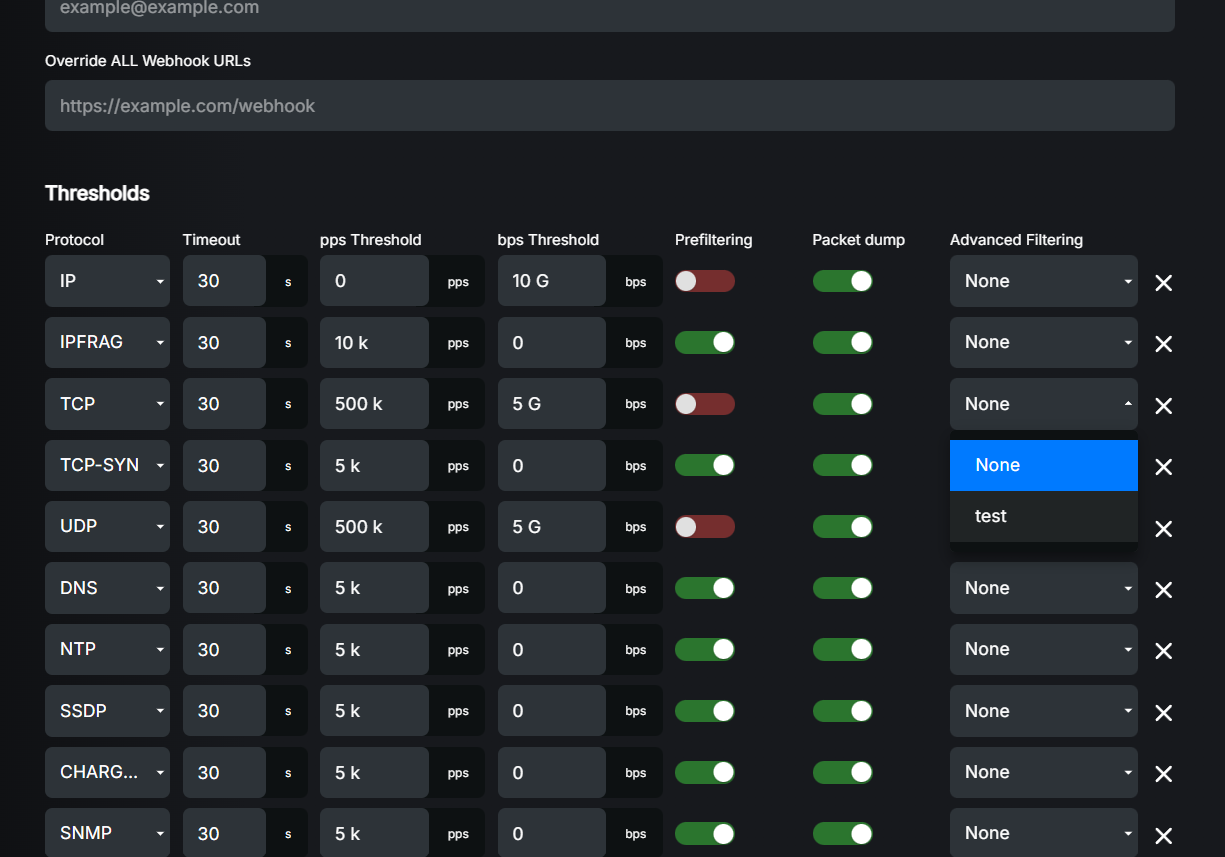
In order to start using the created profile, it needs to be attached to the specific protocol thresholds. Navigate to Filtering, then edit the desired prefix and attach the profile to the selected protocol threshold entry. Please refer to detection and filtering section for more details about protocol thresholds and adding advanced filtering profiles.
Here is a quick example of advanced filtering profile selection menu in the protocol threshold editor: