Event Pipelines#
Introduction#
In order to provide flexibility and extensibility, LiveShield incorporates an event pipeline system. This system allows users to define custom processing steps for various events that occur during attack detection and mitigation.
Create and attach#
Event pipelines can be configured from the Settings section in the main menu, under the Event Pipelines tab.
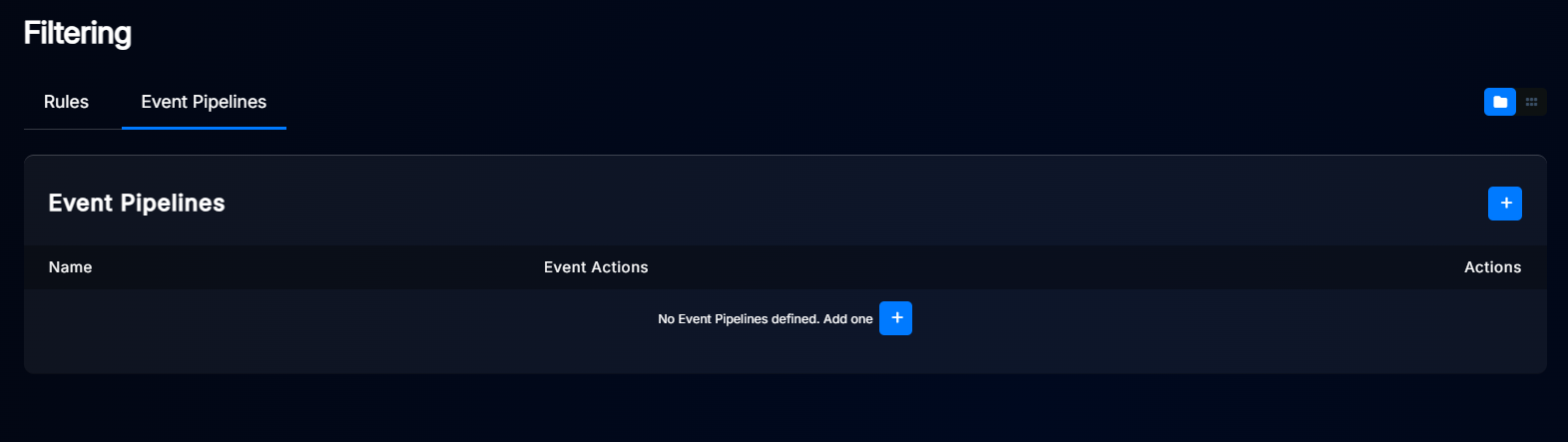
Click the “+” button to add a new event pipeline.
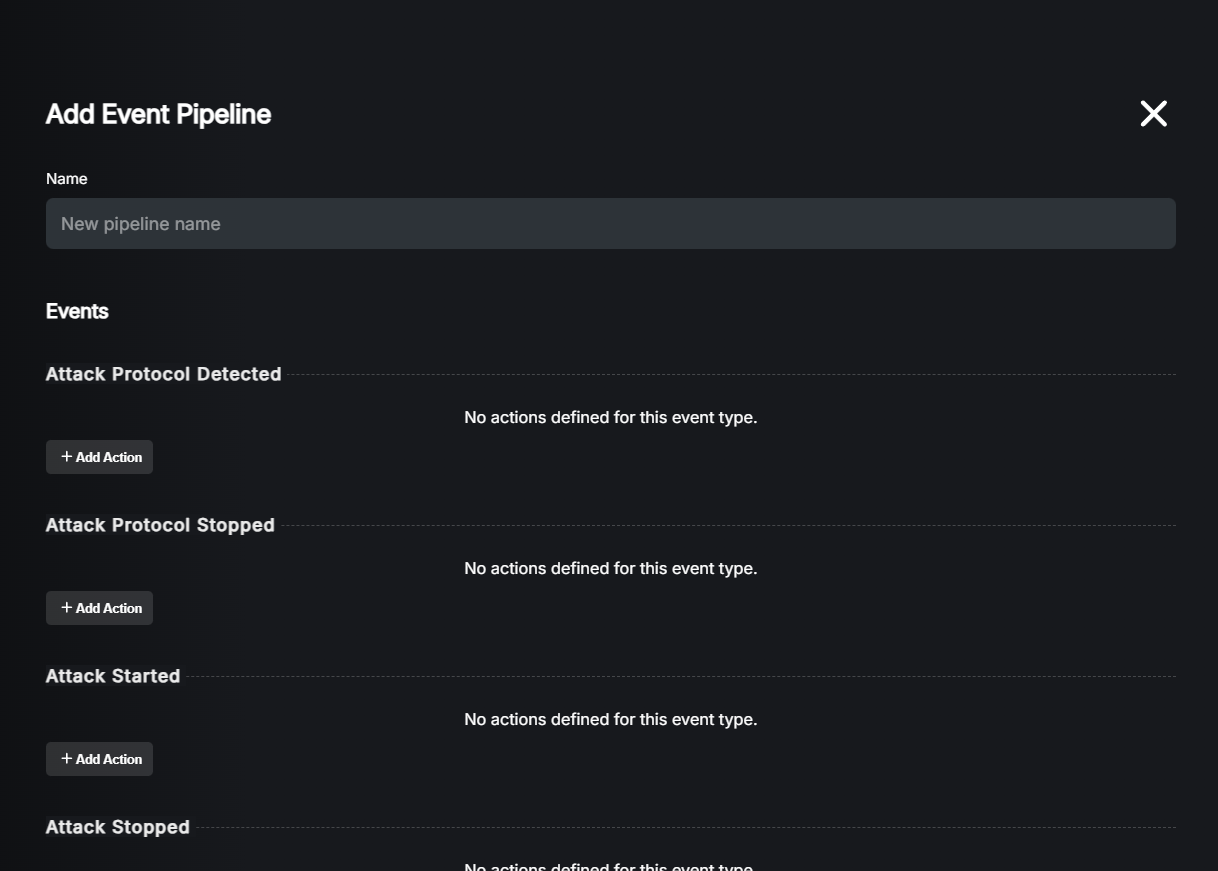
Currently supported events:
Attack Started: Triggered when a new attack is detected (per IP/subnet).
Attack Stopped: Triggered when an ongoing attack is no longer treated as detected (entry in Attacks page marked as finished).
Attack Protocol Detected: Triggered when a specific attack protocol is identified during an ongoing attack. i.e., when IPFRAG, UDP and DNS thresholds are exceeded for a particular attack, this event will be triggered 3 times (once per protocol).
Attack Protocol Stopped: Triggered when a specific attack protocol is no longer detected during an ongoing attack. i.e., when IPFRAG, UDP and DNS thresholds are no longer exceeded for a particular attack, this event will be triggered 3 times (once per protocol).
Filtering Rule Triggered: Triggered when a filtering rule is applied to mitigate an attack. If for a single attack, multiple filtering rules are applied (e.g. per protocol), this event will be triggered for each rule.
Filtering Rule Stopped: Triggered when a filtering rule is removed. If for a single attack, multiple filtering rules were applied (e.g. per protocol), this event will be triggered for each rule. This doesn’t mean the attack is stopped, just that a specific filtering rule is no longer applied.
Blackholing Started: Triggered when blackholing is applied for an IP.
Blackholing Stopped: Triggered when blackholing is removed for an IP.
Blackholing Triggered For Protocol: Triggered when blackholing thresholds are exceeded for a particular protocol during an ongoing attack. i.e., when UDP and DNS thresholds are exceeded for a particular blackholing profile, this event will be triggered 2 times (once per protocol). Only one route will be announced!
Blackholing Protocol Removed: Triggered when blackholing thresholds are no longer exceeded for a particular protocol during an ongoing attack (and timeout expired). i.e., when UDP and DNS thresholds are no longer exceeded for a particular blackholing profile, this event will be triggered 2 times (once per protocol). The route will be withdrawn when all protocols are no longer exceeded and the timeout has expired.
To add an action to the pipeline, click the “Add Action” button.
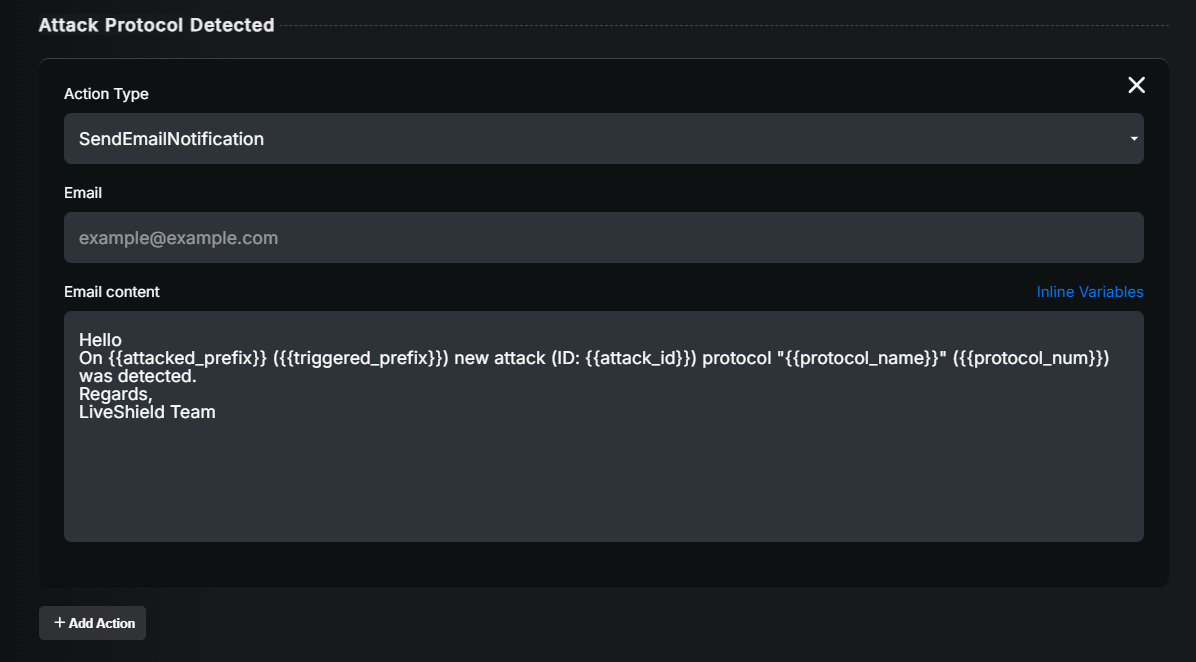
Available options:
Name: A friendly name for your event pipeline. Just for your reference.
Action type: Type of action to perform. Choose from the supported actions.
Email / Webhook URL / Script Path: Depending on the action type, provide the necessary details such as email addresses, webhook URL, or script path (can be provided with arguments).
Email content / Payload: Depending on the action type, provide the email content or webhook payload. You can use variables to include dynamic information. Click on the inline variables link to see the list of available variables for a particular event.
Hint
You can use inline variables in email content, webhook payload, or script arguments to include dynamic information about the event. Click on the inline variables link to see the list of available variables for a particular event.
Inline variables are used in the following format: {{variable_name}}. For example, to include the attack ID in an email, you would use {{attack_id}} in the email content.
Supported actions:
Send Email Notification: Sends an email notification to predefined recipients. Email content can be customized (with variables).
Send Webhook Notification: Sends an HTTP POST request to a predefined URL. You can configure your own payload.
Script Execution: Executes a custom script located on the Analyser module. You can pass variables on the command line.
Hint
You can add multiple actions of the same type to a single event pipeline. For example, you can send email notifications to multiple recipients by adding multiple “Send Email Notification” actions with different email addresses or default content.
After configuring the event pipeline, it’s necessary to attach it to the desired prefix.
Go to the Settings section in the main menu, then to the Rules tab. Click on the desired prefix to edit its settings.
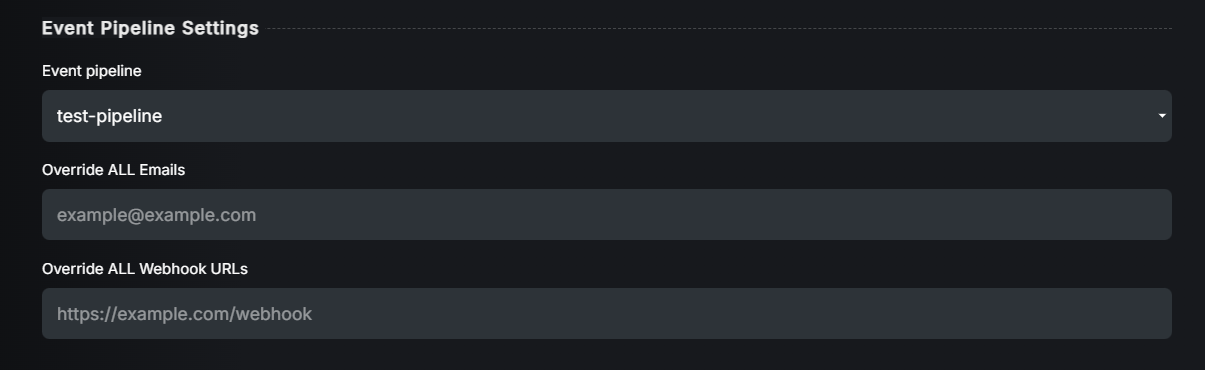
Select your event pipeline from the Event Pipelines dropdown.
Hint
You can override the email or webhook URL defined in the event pipeline by providing custom values here. If left empty, the values from the event pipeline will be used.
This is useful if you want to change notification recipients or the webhook URL for specific prefixes without creating separate event pipelines.
Notifications template#
LiveShield provides default templates for email notifications and webhook payloads for each event type. They are provided as a starting point when creating a new event pipeline action.
However, you can customize these templates to fit your needs. You can modify the content and included variables as required.
Navigate to the Settings section in the main menu, then to the Event Pipelines tab and Notification Templates section.
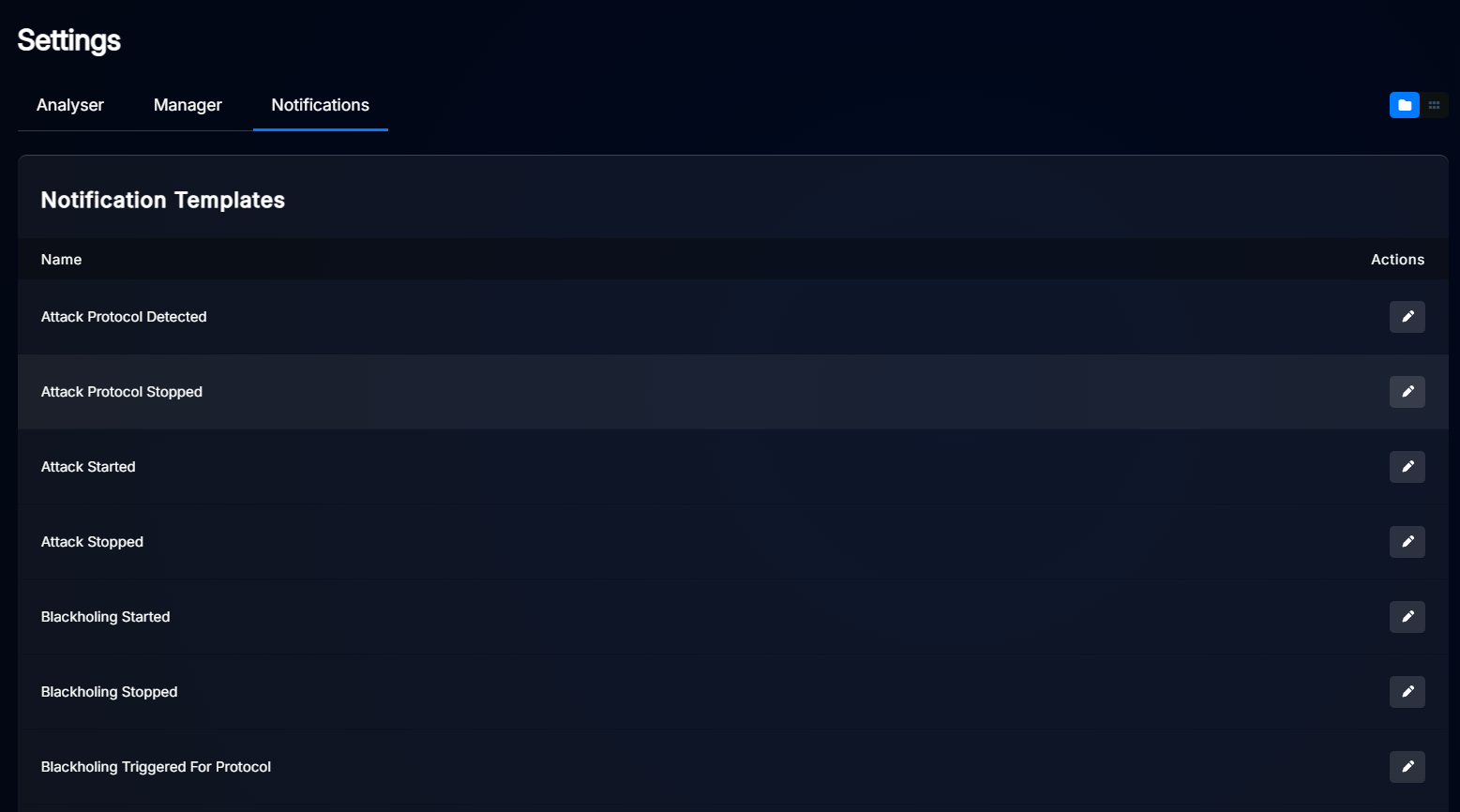
Select the desired event type to edit its template.
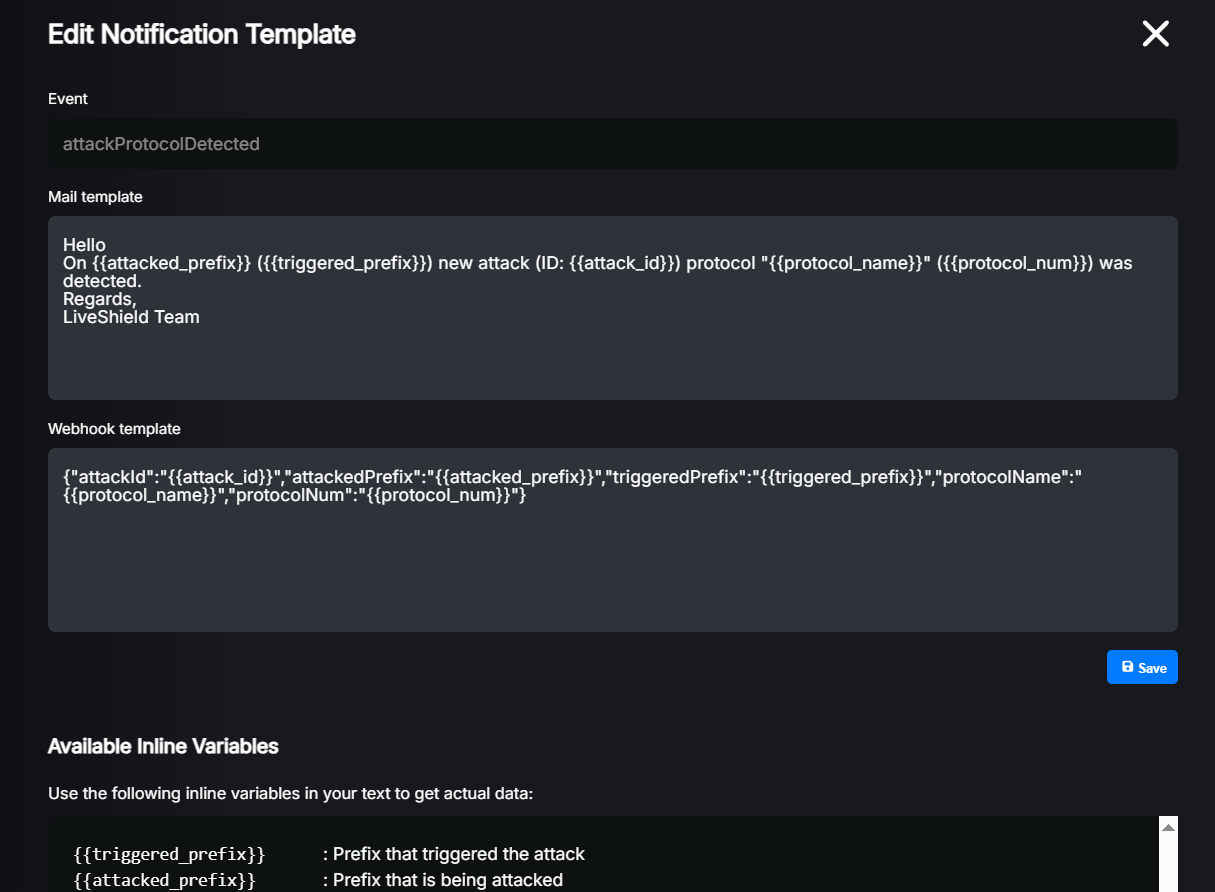
You can use the provided Available inline variables to include dynamic information in your templates.
This template will now be used as the default when creating new event pipeline actions for the selected event type.